Laptop Keyboard Stopped Working Suddenly? How I Fixed It Myself
There are few things more frustrating than opening your laptop, getting ready to work, and suddenly discovering that the keyboard has stopped responding.
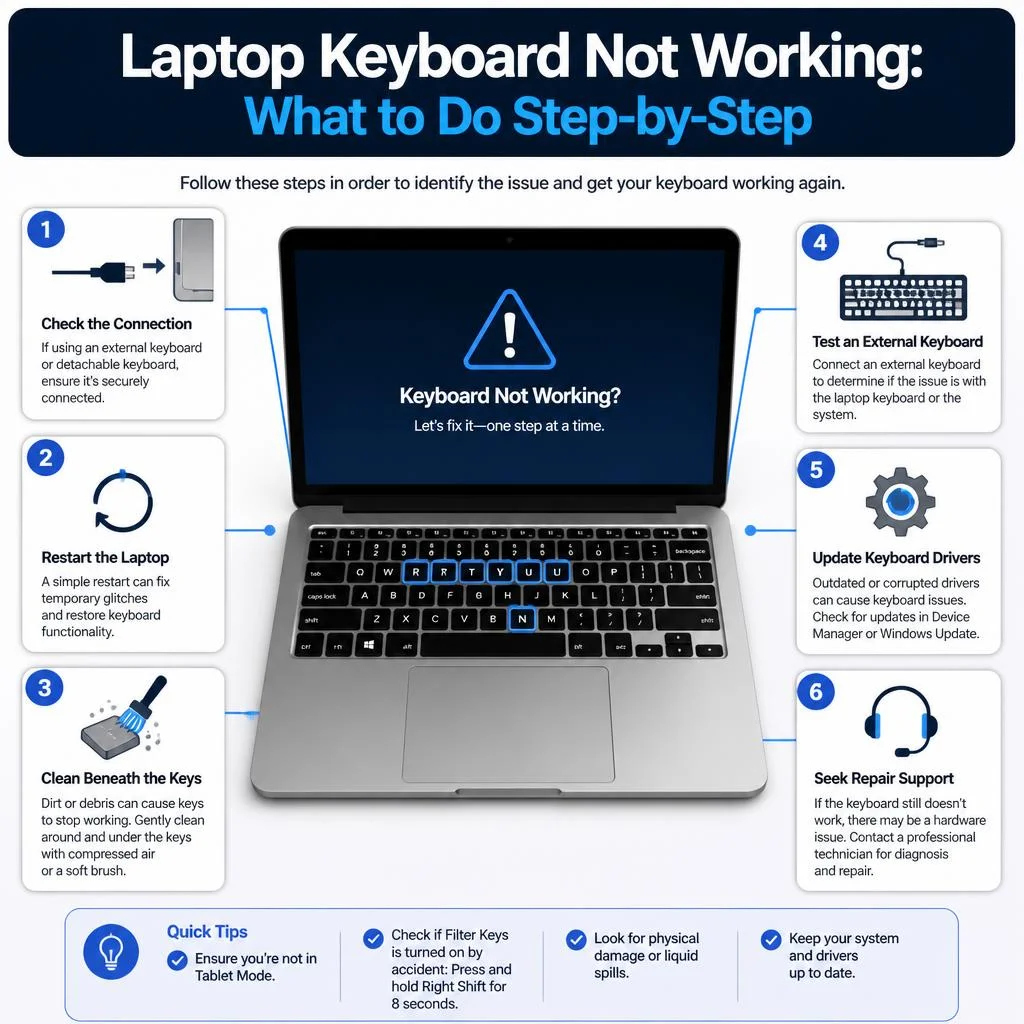
That is exactly what happened to me. The laptop was running normally, the screen was fine, the touchpad still worked, and Windows loaded without any obvious warning. But when I tried typing, nothing happened.Laptop Keyboard Stopped Working Suddenly? How I Fixed It Myself
At first, I assumed the keyboard itself had finally failed. Then I started wondering whether a Windows update, a driver problem, or even a simple setting was responsible.
Instead of immediately taking the laptop to a repair shop, I decided to troubleshoot it myself.
The good news is that you don’t always need to replace a laptop keyboard when it suddenly stops working. The same symptom can be caused by Windows, a keyboard driver, an accessibility setting, a loose connection, physical damage, or a completely failed keyboard.
Here’s the process I used to narrow down the problem, what I checked first, and what you can try if your laptop keyboard suddenly stops working.
| Symptom | Possible Cause | Recommended Action |
|---|---|---|
| No keys work | Windows, driver, or hardware problem | Restart and test USB keyboard |
| Only a few keys fail | Dirt, physical damage, or keyboard matrix problem | Inspect and test |
| USB keyboard works | Built-in keyboard problem possible | Investigate internal keyboard |
| Keyboard works in BIOS | Windows/software issue more likely | Check drivers and Windows |
| Keyboard fails in BIOS too | Hardware issue more likely | Professional inspection |
| Problem began after update | Driver/software issue possible | Check update and drivers |
| Problem began after liquid spill | Liquid damage possible | Stop using and seek inspection |
| Keys repeat automatically | Stuck key or hardware issue | Inspect/clean and test |
First, Don’t Panic: Check What Actually Stopped Working
Before changing drivers or opening the laptop, I wanted to answer one simple question:
Was the entire keyboard broken, or was Windows simply not recognizing it correctly?
I tested several keys rather than assuming the whole keyboard had failed.
I tried letters, numbers, Enter, Backspace, Space, and the function keys. If only one or two keys are affected, the cause can be very different from a situation where absolutely nothing works.Laptop Keyboard Stopped Working Suddenly? How I Fixed It Myself
For example, a few dead keys can point toward dirt, physical damage, liquid exposure, or a problem with part of the keyboard’s internal circuitry. If every key stops responding at the same time, however, software, drivers, connections, or a broader hardware problem become more important possibilities.
I also checked whether the touchpad and mouse were still working. They were.
That was useful because it meant I could continue troubleshooting without immediately needing another computer.
Table of Contents
Restart the Laptop
The first thing I did was surprisingly simple: I restarted the laptop.
A restart is worth trying before making any complicated changes because temporary Windows or driver problems can sometimes disappear after the operating system reloads.
If your keyboard is completely unusable, you can use the mouse to open the Start menu and select the power options.
If the laptop is frozen, however, be more careful about forcing it off. A forced shutdown should be a last resort when Windows is still responding normally.
After the restart, I tested the keyboard again.
Still nothing.
So I moved to the next test.
I Connected an External USB Keyboard
This was one of the most useful steps in the entire troubleshooting process.
I connected a USB keyboard to the laptop.Laptop Keyboard Stopped Working Suddenly? How I Fixed It Myself
The reason this test matters is simple: it helps separate a problem with the built-in laptop keyboard from a problem affecting Windows more generally.
If the USB keyboard works normally, Windows is clearly capable of receiving keyboard input. That doesn’t prove that the internal keyboard is physically broken, but it gives you an important clue.
Microsoft also recommends checking connections, trying different USB ports, and testing input devices when troubleshooting keyboard problems.Laptop Keyboard Stopped Working Suddenly? How I Fixed It Myself
If you don’t have a USB keyboard, you can borrow one temporarily. A basic wired keyboard is enough for this test.
What the Results Mean
If the external keyboard works:
The problem may be limited to the laptop’s built-in keyboard, its driver, or its internal connection.
If the external keyboard also doesn’t work:
The problem may involve Windows, drivers, USB/input-device issues, or a broader system problem.
This simple test prevented me from immediately assuming that the keyboard needed to be replaced.
I Checked Whether the Keyboard Worked Outside Windows
The next useful question was whether the keyboard worked before Windows fully loaded.
This is where BIOS or UEFI can help.Laptop Keyboard Stopped Working Suddenly? How I Fixed It Myself
BIOS/UEFI is the firmware environment that runs before Windows. The exact key used to enter it depends on the laptop manufacturer. Common keys include F2, Delete, Esc, or F10, but you should check the manufacturer’s instructions for your particular model.
If the keyboard works normally inside BIOS/UEFI but stops responding after Windows loads, that is an important clue.
It suggests that the physical keyboard can communicate with the computer at least at a basic level, making a Windows-side problem more likely.
On the other hand, if the internal keyboard doesn’t respond even in BIOS/UEFI, the possibility of a hardware problem becomes more significant.
This isn’t an absolute test. Laptop designs differ, and some BIOS/UEFI environments have limited keyboard functionality. But it can be a useful diagnostic step.Laptop Keyboard Stopped Working Suddenly? How I Fixed It Myself
The Quick Diagnosis I Used
At this point, I could organize the problem into a simple decision tree.
| What happens? | What it may suggest |
|---|---|
| Built-in keyboard and USB keyboard both fail | Windows, driver, or broader hardware issue |
| USB keyboard works but built-in keyboard doesn’t | Built-in keyboard, driver, or internal connection |
| Built-in keyboard works in BIOS but not Windows | Windows, driver, or software issue |
| Built-in keyboard doesn’t work in BIOS | Hardware problem becomes more likely |
| Only a few keys fail | Physical damage, debris, liquid damage, or keyboard circuitry |
| Problem started after an update | Driver or software change may be relevant |
This doesn’t diagnose the problem by itself. Instead, it tells you which direction to investigate next.
I Checked Windows Update
Because the keyboard problem appeared unexpectedly, I checked Windows Update.
In Windows 11, open:
Start → Settings → Windows Update
Then select Check for updates.
If updates are available, allow Windows to install them and restart the computer when appropriate.
Microsoft specifically recommends checking Windows Update when troubleshooting keyboard and other input-device problems. Microsoft also notes that driver updates may be delivered through Windows Update, although a driver update is not guaranteed to be available.
If the keyboard stopped working immediately after a recent Windows update, don’t automatically assume that the update caused it. The timing is a clue, not proof.
However, if the problem clearly began immediately after an update, Windows provides recovery options that can be considered later.
I didn’t jump straight to uninstalling an update because I wanted to try less disruptive solutions first.
I Checked the Keyboard Driver in Device Manager
The next step was Device Manager.
You can open it by searching for:
Device Manager
in the Windows search box.
Look for the category related to keyboards and expand it.
Depending on the laptop and driver, the keyboard may appear under a keyboard-related category or with a manufacturer-specific name.
Right-click the relevant device and look at the available options.
Microsoft’s current instructions explain that Device Manager can be used to update device drivers.
Try Updating the Driver
Select the option to update the driver and follow Windows’ instructions.
However, there is an important point here:
Windows may tell you that the best driver is already installed.
That does not necessarily prove that the keyboard hardware is healthy. It simply means Windows didn’t find a newer driver through that particular process.
Reinstalling the Driver
If the keyboard is still not working, reinstalling the device driver can sometimes help with a driver-related problem.
Before doing this, make sure you have another way to control the computer, such as a mouse or external keyboard.
Device Manager can be used to uninstall a device and then allow Windows to detect it again after restarting.
Do not randomly uninstall unrelated devices or drivers. The goal is to work specifically with the keyboard device.
I Checked Accessibility Settings
Another setting worth checking is Windows Accessibility.
Open:
Start → Settings → Accessibility → Keyboard
Microsoft provides keyboard-related options in this area, including Sticky Keys, Toggle Keys, Filter Keys, and the On-Screen Keyboard.
Filter Keys, for example, can change how Windows handles brief or repeated keystrokes. If your keyboard behaves strangely rather than being completely dead, accessibility settings are worth checking.
Don’t change every option at random.
Instead, look at what is currently enabled and temporarily disable a setting if you suspect it is affecting keyboard input.
I Used the On-Screen Keyboard as a Temporary Solution
When a physical keyboard isn’t working, the On-Screen Keyboard can be extremely useful.
In Windows, you can access it through:
Settings → Accessibility → Keyboard → On-Screen Keyboard
Microsoft also documents the keyboard shortcut Windows key + Ctrl + O for opening it.
This doesn’t repair the physical keyboard, of course.
But it gives you a way to type passwords, search Windows, change settings, and continue troubleshooting without immediately buying another keyboard.
If your physical keyboard is completely dead, an inexpensive USB keyboard is usually an even more convenient temporary solution.
I Tried Safe Mode
If the keyboard works in some situations but not normally inside Windows, Safe Mode can provide another useful diagnostic test.
Safe Mode starts Windows with a limited set of files, drivers, and services. Microsoft explains that if a problem doesn’t occur in Safe Mode, that can help narrow down whether default settings, basic drivers, or services are involved.
The exact route to Safe Mode can vary depending on how you access Windows Recovery Environment.
A common route is:
Settings → System → Recovery → Advanced startup → Restart now
From the recovery environment, select:
Troubleshoot → Advanced options → Startup Settings → Restart
You can then select the Safe Mode option from the Startup Settings screen.
If your keyboard doesn’t work well enough to navigate these menus, use your mouse or an external keyboard.
What Safe Mode Tells You
If the keyboard works in Safe Mode but not in normal Windows, that gives you a strong clue that something loaded during normal startup may be involved.
That could include:
- A third-party driver
- Startup software
- A configuration problem
- Another software conflict
Safe Mode doesn’t automatically tell you exactly which program is responsible. It simply helps narrow the field.
I Looked for Physical Problems
After checking Windows, drivers, and settings, I considered the possibility that the keyboard itself was physically damaged.
This is especially important if the problem started after:
- Dropping the laptop
- Pressing heavily on the keyboard
- Transporting the laptop in a tightly packed bag
- Cleaning it incorrectly
- Spilling water or another liquid
- Long-term wear
Dust and Debris
If only a few keys are affected, look carefully at the affected keys.
Dust, crumbs, and other debris can interfere with individual keys.
You can clean the keyboard carefully using methods appropriate for your laptop manufacturer’s instructions.
Avoid aggressively prying off laptop keycaps unless you know the mechanism and how it is designed. Laptop key mechanisms can be surprisingly fragile.
Liquid Damage Is Different
If liquid was spilled on the keyboard, don’t treat it like an ordinary software problem.
Liquid can cause short circuits, corrosion, and delayed failures.
If a significant spill occurred, continuing to power the laptop on repeatedly just to test it may make the situation worse.
At that point, professional inspection is often safer than repeatedly experimenting with software settings.
A Loose Internal Connection
Laptop keyboards are connected internally to the motherboard, usually through a thin ribbon cable or similar connector.
If that connection becomes loose or damaged, the keyboard can stop responding even though the rest of the laptop appears normal.
However, opening a laptop isn’t something I would recommend to every user.
Laptop designs vary considerably, and opening the wrong panel or damaging a connector can create a second problem.
If the laptop is under warranty, check the warranty conditions before opening it yourself.
What Finally Solved the Problem?
The most important lesson from this experience was that I didn’t start by replacing the keyboard.
I first tried to determine where the failure was occurring.
That distinction matters.
If the problem is Windows-related, replacing the keyboard won’t solve anything.
If the internal keyboard has a damaged connection, reinstalling Windows may accomplish nothing.
If only a few keys are physically damaged, a driver update is unlikely to magically repair them.
The useful sequence was:
Restart → test external keyboard → test outside Windows if possible → check Windows Update → inspect Device Manager → check Accessibility settings → try Safe Mode → investigate hardware.
Once the source of the problem becomes clearer, the appropriate solution becomes much easier to choose.
For a real personal account, this is also the section where I would state the exact fix that worked on my particular laptop, rather than pretending that one universal fix works for every machine.
What If the Keyboard Still Doesn’t Work?
If you’ve tried the reasonable software checks and the keyboard still refuses to respond, don’t immediately jump to resetting Windows.
Microsoft’s recovery guidance recommends starting with less disruptive recovery options and progressing to more significant changes only when necessary.
If the problem began after a recent update, Windows provides an option to uninstall an update in appropriate circumstances. Microsoft notes that uninstalling a recent update can help if the problem began after that update.
System Restore may also be appropriate when a suitable restore point exists.
A full Windows reset should be much further down the troubleshooting list. Resetting Windows can remove applications and settings, and depending on the selected option, personal files can also be removed. Microsoft recommends backing up important files before using recovery or reset options.
In other words:
Don’t reset the entire computer because one keyboard stopped working.
Try the targeted solutions first.
When Should You Take the Laptop to a Repair Professional?
There is a point where DIY troubleshooting stops making sense.
I would strongly consider professional help if:
- The laptop suffered liquid damage.
- The keyboard doesn’t work in BIOS/UEFI.
- Several components stopped working at the same time.
- The laptop has visible physical damage.
- The internal keyboard connector may be damaged.
- The keyboard needs replacement.
- The laptop is difficult to disassemble.
- The device is still under warranty.
- You are uncomfortable opening electronic hardware.
A repair technician can inspect the keyboard assembly, ribbon connection, motherboard circuitry, and other components that cannot be properly diagnosed through Windows alone.
A Simple Checklist to Follow
If your laptop keyboard suddenly stops working, work through this list in order:
- Restart the laptop.
- Test several different keys.
- Check whether the touchpad or mouse still works.
- Connect a USB keyboard.
- Determine whether the external keyboard works.
- Test the built-in keyboard in BIOS/UEFI if practical.
- Check Windows Update.
- Open Device Manager and inspect the keyboard device.
- Check Accessibility and Filter Keys settings.
- Try Safe Mode if the symptoms suggest a Windows/software problem.
- Inspect the keyboard for physical damage or debris.
- Consider liquid damage if a spill occurred.
- Use an external or On-Screen Keyboard as a temporary solution.
- Get professional help if hardware failure becomes likely.
This approach is much better than randomly changing settings because every test gives you another piece of information.
Frequently Asked Questions
Why did my laptop keyboard suddenly stop working?
There isn’t one universal cause. Possible causes include Windows or driver problems, accessibility settings, physical damage, liquid exposure, a loose internal connection, or failure of the keyboard itself.
The best approach is to diagnose the problem rather than immediately assuming that the keyboard needs replacement.
How do I get my laptop keyboard working again?
Start with a restart, then test an external USB keyboard. If the external keyboard works, investigate the built-in keyboard, its driver, and its physical connection. If the problem appears to be Windows-related, check Windows Update, Device Manager, Accessibility settings, and Safe Mode.
Why are only some keys on my laptop not working?
When only certain keys fail, physical problems become more important possibilities. Dirt, debris, liquid exposure, damaged key mechanisms, or a problem with part of the keyboard circuitry can all cause individual keys to stop working.
Can a Windows update cause keyboard problems?
A keyboard problem that appears after an update may be related to a driver or software change, but timing alone doesn’t prove causation.
If the problem clearly began after a recent update, Windows provides recovery options that may include uninstalling the update.
How do I know if my laptop keyboard is physically broken?
One useful approach is to test the keyboard outside Windows, such as in BIOS/UEFI, and compare it with an external USB keyboard.
If the internal keyboard fails consistently while an external keyboard works, hardware becomes a stronger possibility. However, the exact diagnosis depends on the laptop model.
Can I use my laptop without the built-in keyboard?
Yes.
You can use a USB or Bluetooth keyboard, or Windows’ built-in On-Screen Keyboard. Microsoft provides the On-Screen Keyboard through Accessibility settings.
Should I replace my laptop keyboard myself?
That depends heavily on the laptop model.
Some keyboards are relatively straightforward to replace, while others are integrated into larger assemblies and require substantial disassembly.
If you don’t have experience working inside laptops, professional repair may be safer.
Should I reset Windows if my keyboard isn’t working?
Not as a first step.
A Windows reset is considerably more disruptive than checking drivers, settings, updates, and hardware. Microsoft recommends trying less disruptive recovery options first and backing up important files before using recovery procedures.
Final Thoughts
When my laptop keyboard suddenly stopped working, my first instinct was to assume the keyboard itself had died.
That turned out to be too simplistic.
A keyboard that stops responding can have several completely different causes, and the most useful thing you can do is narrow down the possibilities before spending money on a replacement.
Start with the simple checks: restart the laptop, test several keys, connect an external keyboard, and determine whether the problem exists outside Windows. Then move toward Windows Update, Device Manager, Accessibility settings, and Safe Mode when appropriate.
If those steps point toward hardware, inspect the situation carefully rather than repeatedly reinstalling software.
Most importantly, don’t treat every keyboard failure as the same problem.
The fastest solution is usually not the most complicated one. It’s the test that tells you what is actually broken.

